Complete your BAXUS wallet setup, screen by screen
Every screen, on web and in the app, in the order you'll meet them. What each button does, what's optional, and what's waiting on the other side.
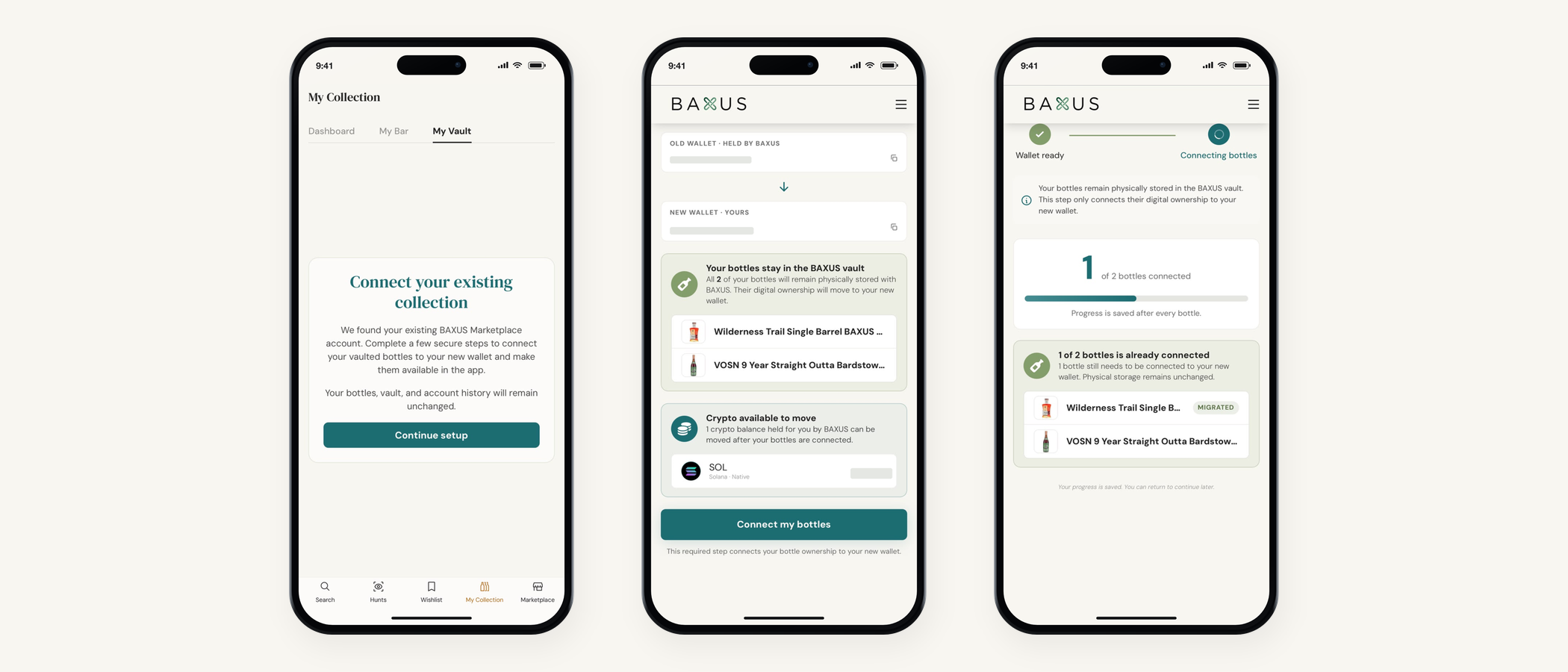
- Every screen, on web and in the app, in the order you'll meet them.
- What each button does, what's optional, and what's waiting on the other side.
- If you’ve logged into BAXUS this week you’ll have met a new screen asking you to finish setting up your wallet.
- Here’s what it is, what it gives you, and what happens on every screen along the way.
If you’ve logged into BAXUS this week you’ll have met a new screen asking you to finish setting up your wallet. Here’s what it is, what it gives you, and what happens on every screen along the way.
The short version: your account, your bottles and your history all stay exactly where they are. We've rebuilt the machinery underneath sign-in and ownership, and this one step is what switches it on for your account.
What it takes: A few minutes · Required: Connect your bottles · Optional: Move your USDC · What you get: Face ID sign-in
What you're being asked to do
There are two parts to the setup. Connecting your bottles is the required one, and moving your USDC across is entirely up to you.
Connect your bottles. They've already been rebuilt on the new standard and are sitting in BAXUS custody, ready to be handed over. One press of a button tells us to move them into your wallet, and we do the work while you watch it happen.
Move your USDC, if you have any. Anything in your old BAXUS wallet can come across to the new one. You choose which balances to include, and leaving it for another day changes nothing else about your account.
It's a one-time setup that usually takes a few minutes, and you won't be asked about it again. If you have a lot of bottles it can take a little longer, and you don't need to stay on the screen. Leave the page and it keeps going in the background.
What the setup gives you
Sign in with your face. Face ID or your fingerprint on your phone, set up once. Google or Apple on the web. Your passkey stays on your device.
One account, one balance. The marketplace, the app and the Vending Machine all draw on the same wallet, so your balance follows you.
Seven ways to pay. PayPal and Venmo have joined card, crypto, Google Pay, Apple Pay and your BAXUS balance at checkout.
Starting on the marketplace
Sign in at baxus.co the way you normally would, with your email, Google or Apple. Use the same one you've always used, because that's how we find your account.
Once you're in, the setup page opens on its own. The marketplace and your account pages will bring you back to it until it's finished, so it's easy to pick up again if something interrupts you. Sign-in and help stay open throughout.
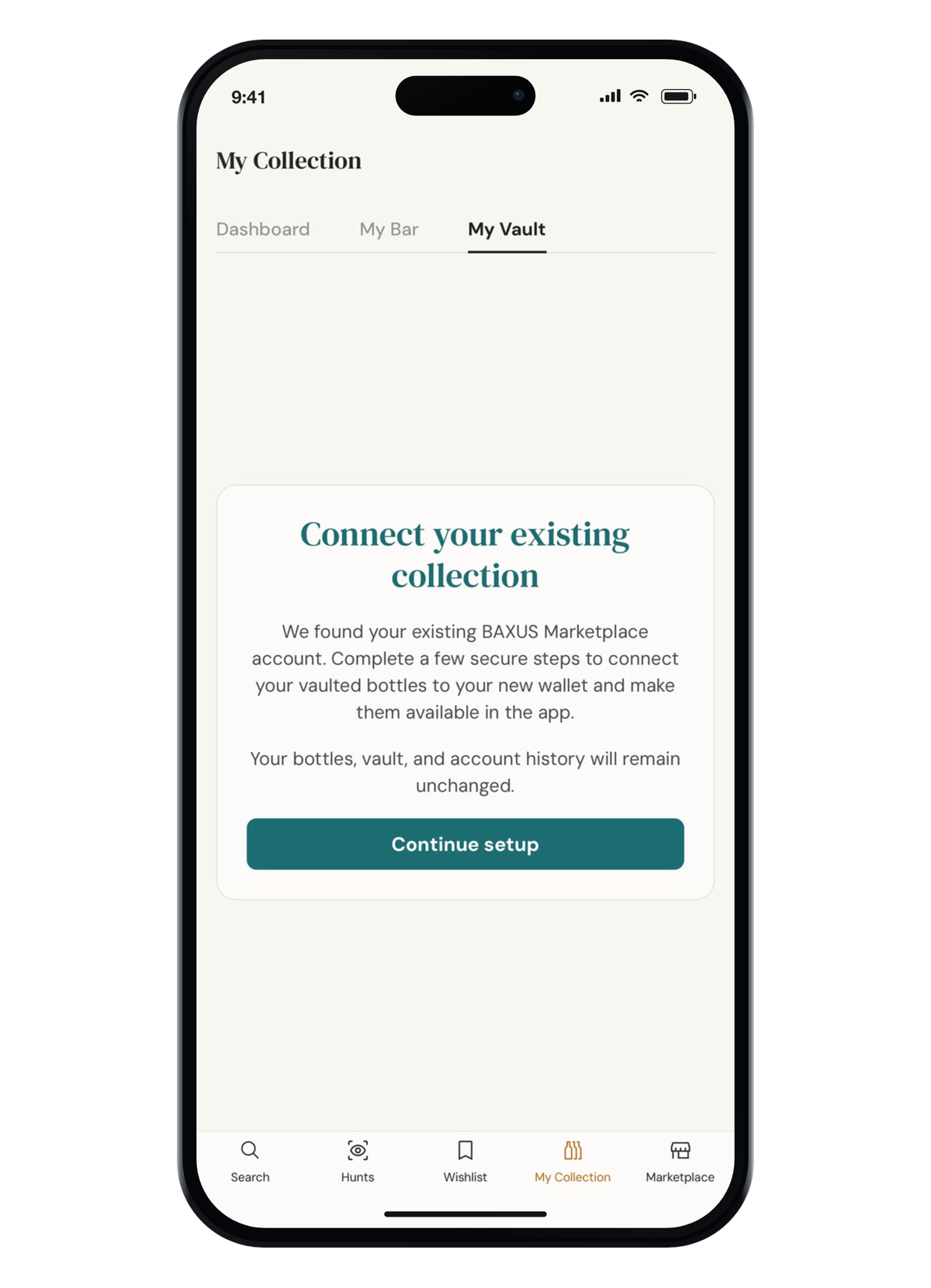
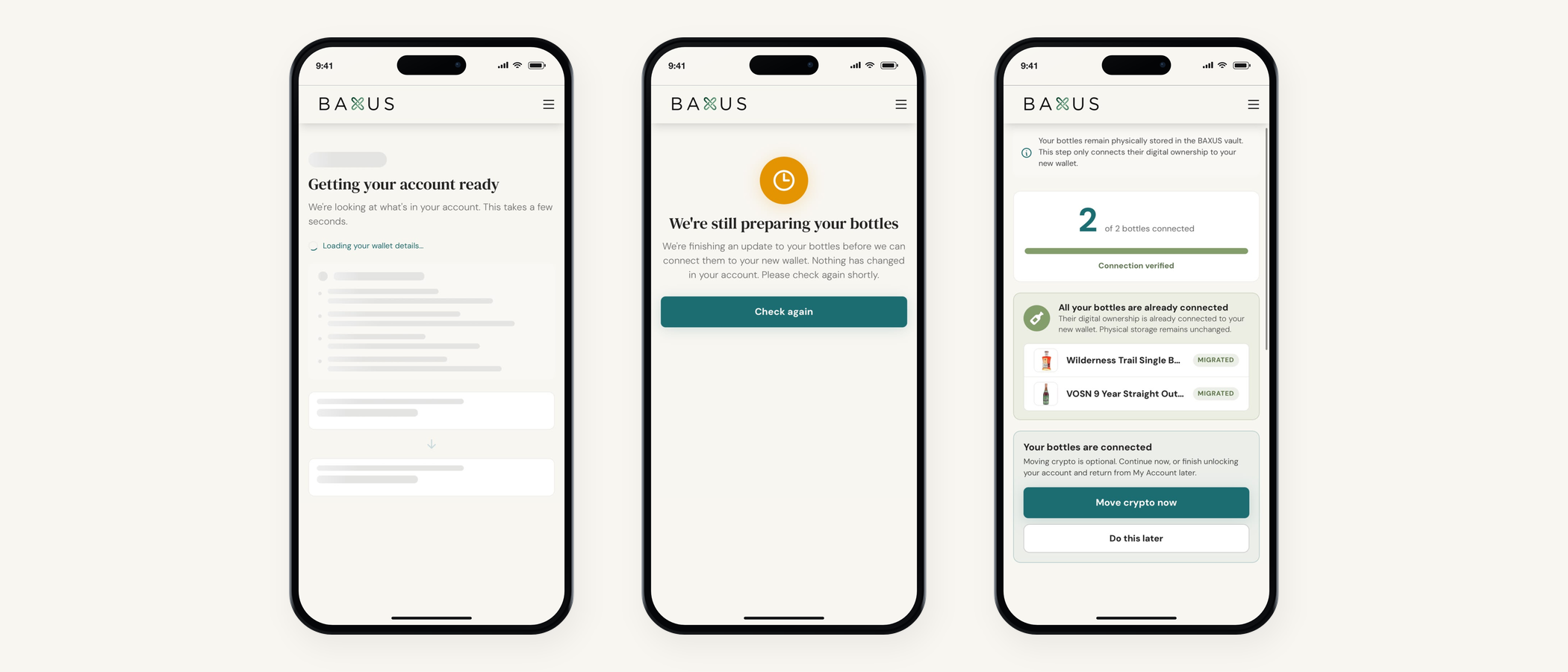
You'll see Getting your account ready for a moment while we load what's in your account and work out what's left to do. Empty spaces on this screen mean the page is still loading. Give it a second.
Starting in the app
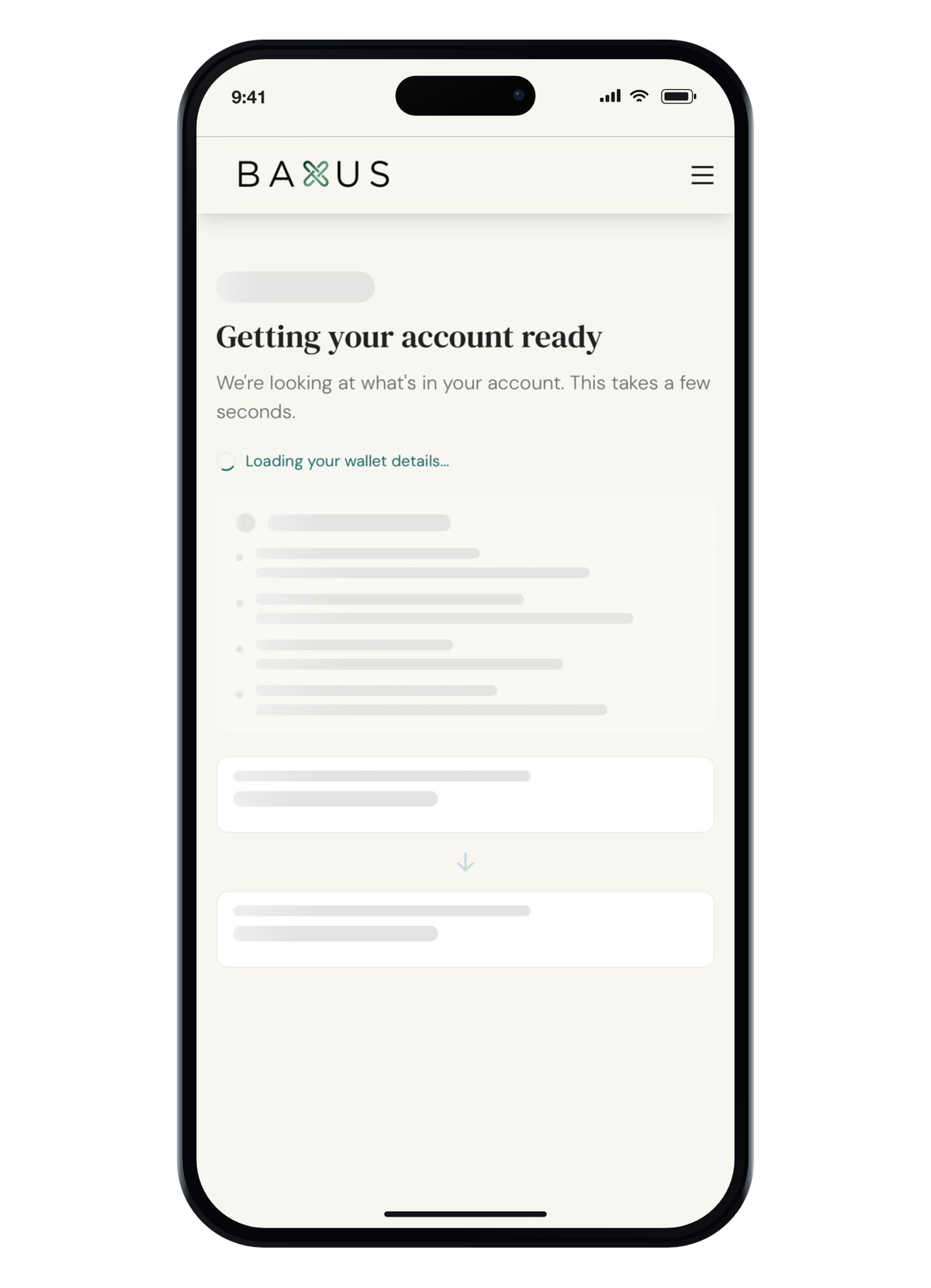
Open the app, go to My Collection, then My Vault. Instead of your usual vault list you'll see a card headed Connect your existing collection, which reads: we found your existing BAXUS Marketplace account, complete a few secure steps to connect your vaulted bottles to your new wallet and make them available in the app.
Tap Continue setup and your phone's browser opens. You may see Signing you in for a second while the app hands you over. If it asks you to sign in again, use the same account and carry on from there.
While you're mid-setup
My Bar keeps working the whole time. Only the Vault waits on the connection, because the Vault is the part that depends on your bottles being in the new wallet.
From here the app and the web are the same flow, so whichever way you arrived, the next few screens look identical.
Reviewing what's yours
The review screen is the important one. It shows the wallet we were holding for you, the wallet you're moving to, the bottles waiting to be connected, and any crypto balance sitting in the old wallet.
At the top you'll see where you are, something like Step 1 of 2 or Step 1 of 3. The count changes depending on whether you have crypto to move, so read the bottles and balances underneath it rather than the number.
Take a second and check the list is right. When you're happy, press Connect my bottles.
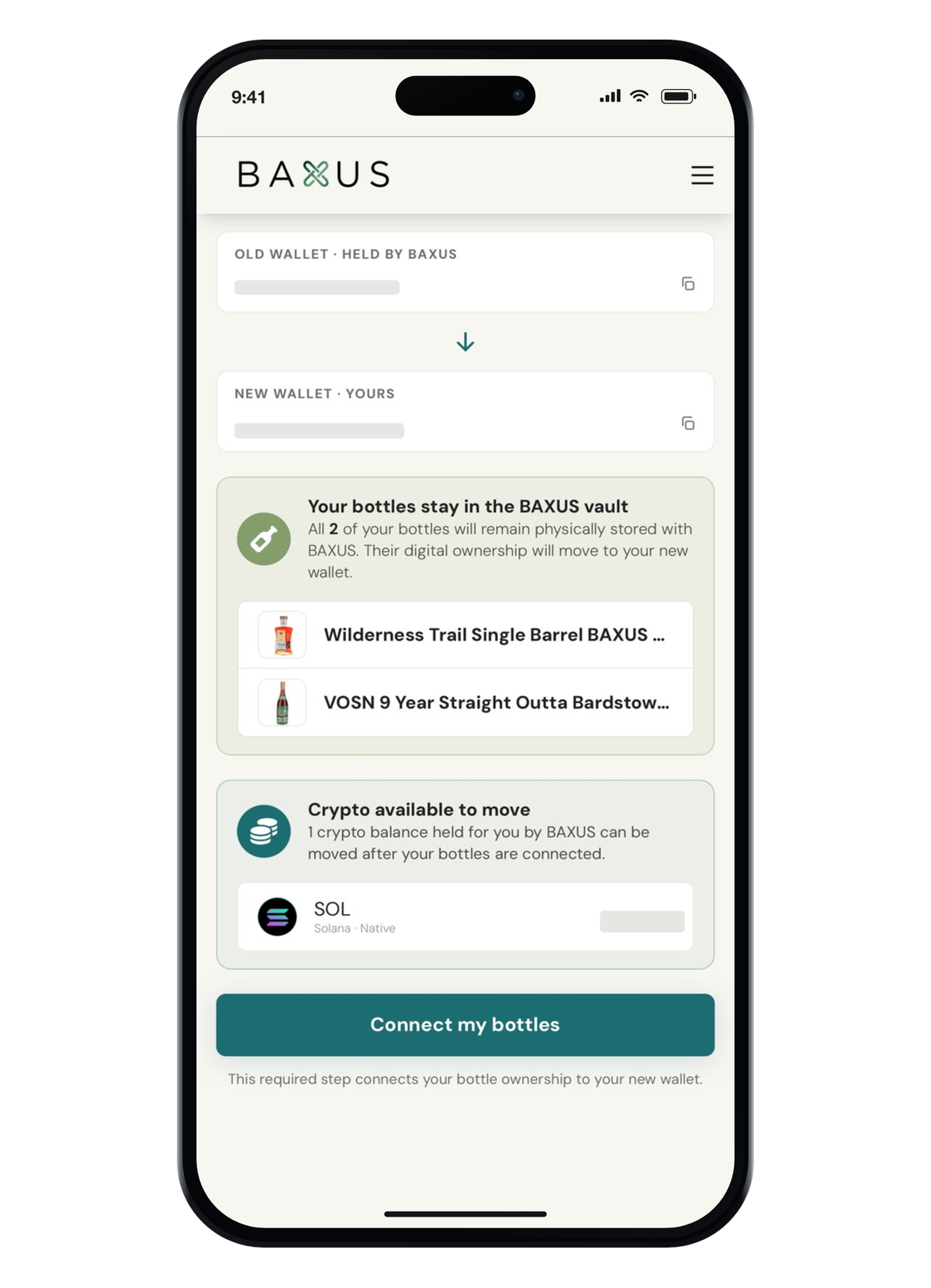
That press is your permission for us to move your bottles into your wallet, and it's the moment the whole thing turns on. Nothing before it counts, so opening the page or signing in isn't enough on its own.
If you don't have bottles waiting, the button reads Set up my BAXUS account instead and the flow is shorter.
Watching it happen
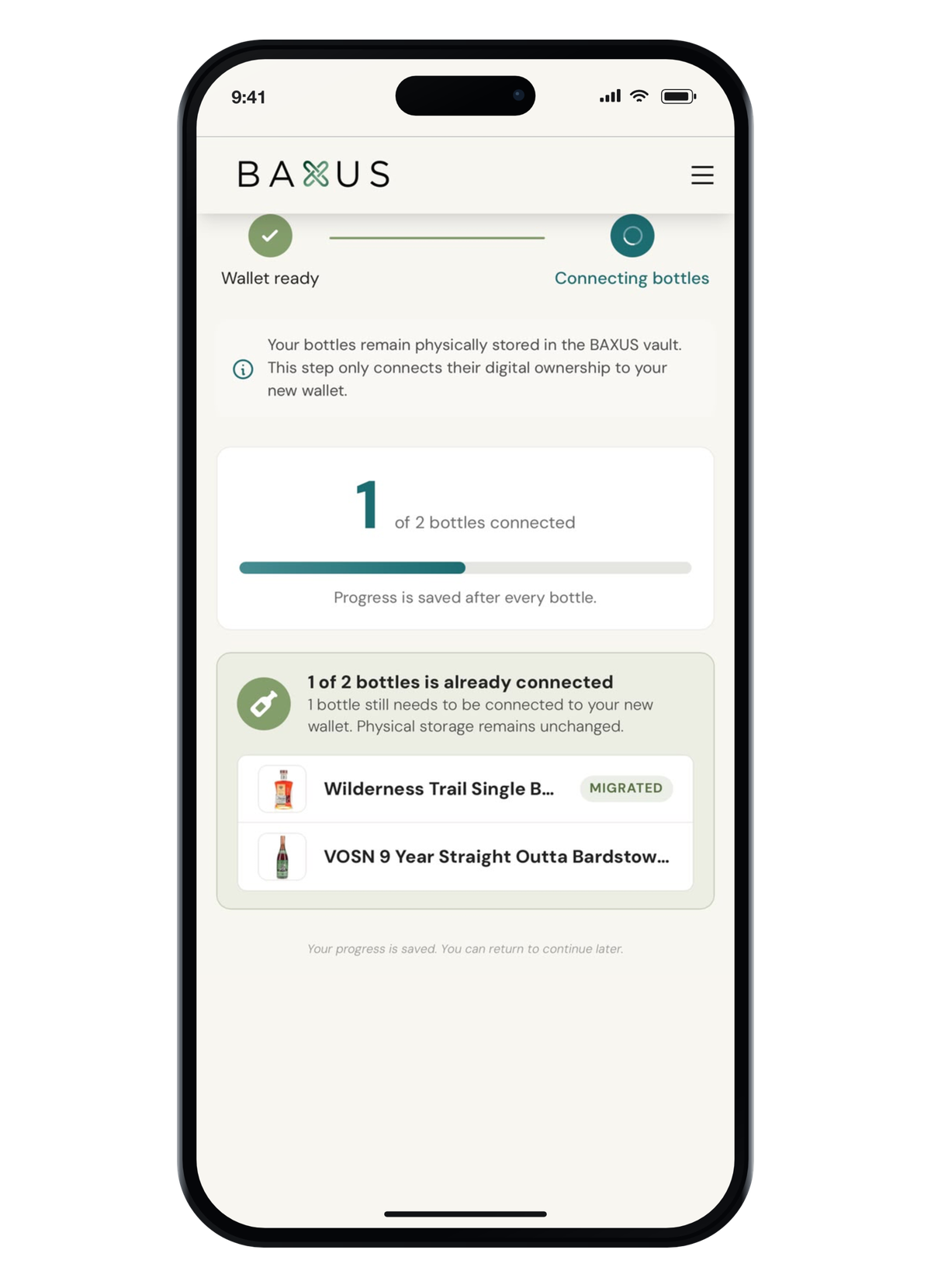
The page works through your bottles one at a time and shows you the count as it goes: 0 of 2 bottles, then one, then both. Each flips to MIGRATED as it lands in your wallet.
You don't have to approve anything per bottle. The go-ahead you already gave covers all of them, and BAXUS does the rest. The page updates on its own, so refreshing won't start it again if you do.
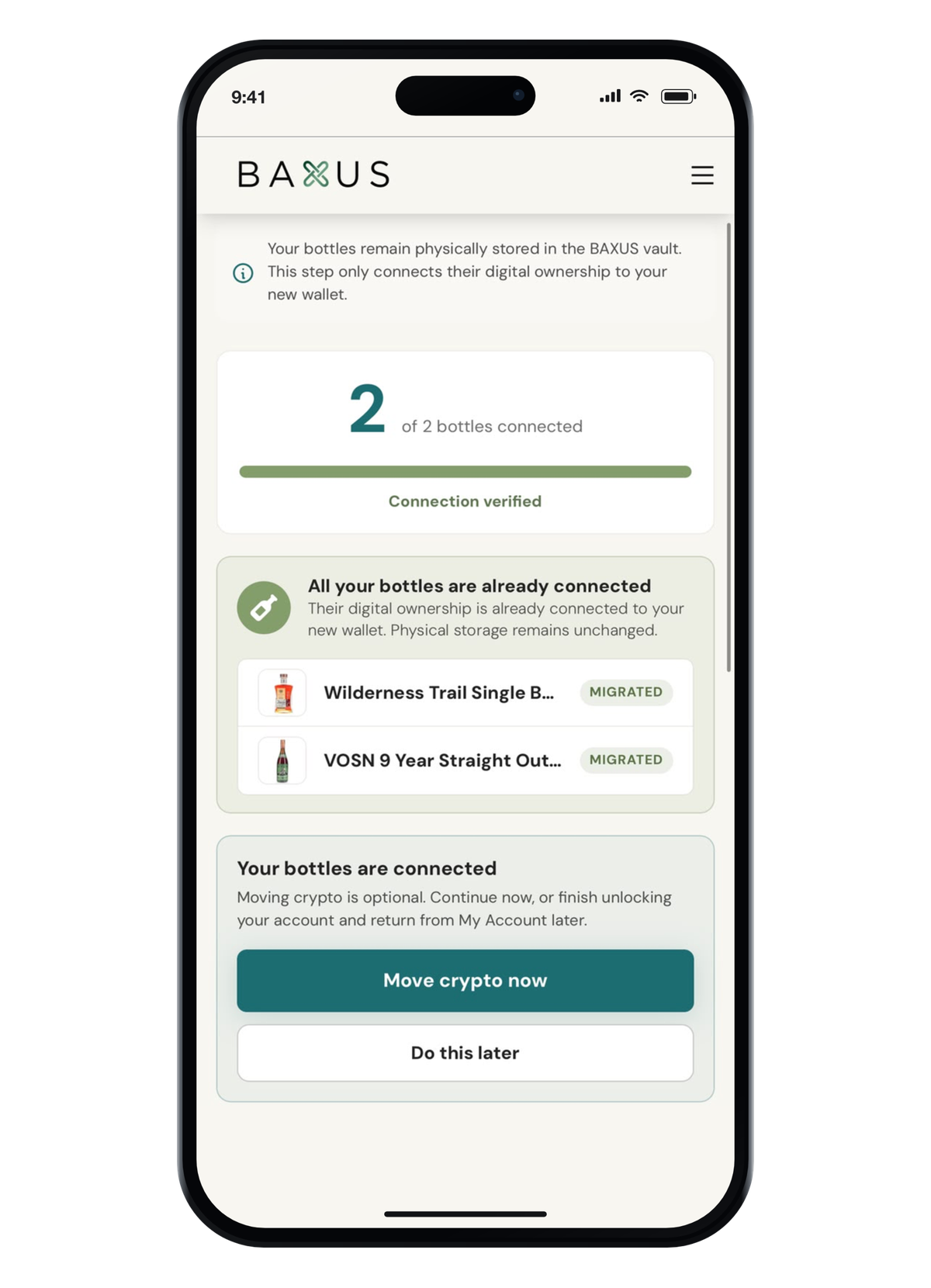
When they're all across you'll see Connection verified. That's us having checked the work rather than claiming it's finished.
Moving your USDC
If you have a balance in your old wallet, this is where it comes up, with two buttons: Move crypto now and Do this later.
Either is fine. Press Do this later and your balance stays where it is, in a wallet that still belongs to you, with a reminder headed Crypto ready to move sitting in My Account for whenever you come back to it.
If you do it now, there are four steps and the page walks you through each one.
The four crypto steps
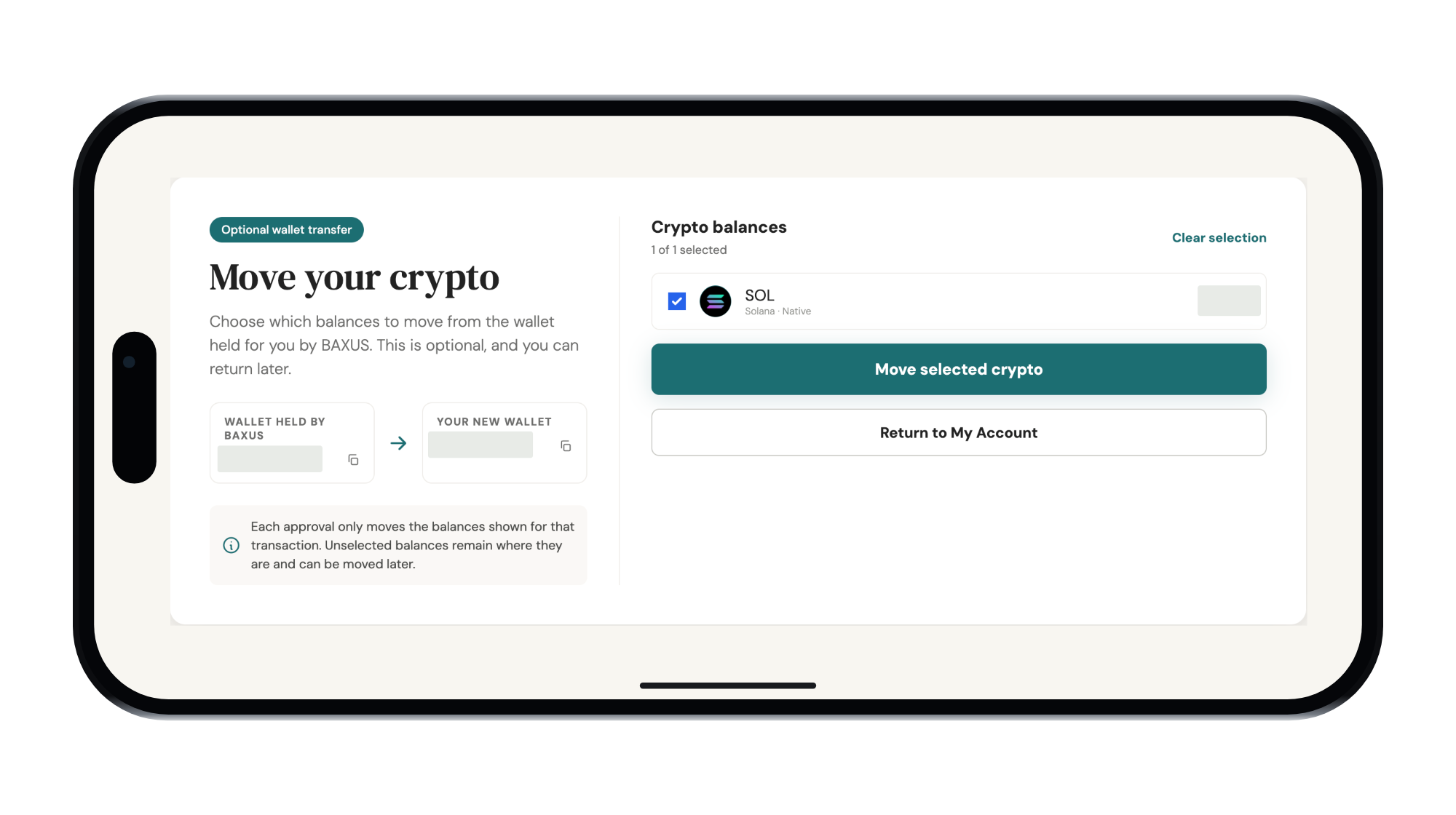
Pick what to move. You'll see the balances available and choose which to include. Anything you leave unticked stays in the old wallet, and you can come back for it later.
Save your selection. The page says Selection saved and, deliberately, Nothing moved yet. Saving a choice is different from sending funds, and we'd rather say so plainly than let you assume.
Approve it. Press Open secure approval. The money is coming out of your old wallet, so the approval runs through MetaKeep, which has always been what signs for that wallet. It may ask for a code by email.
Confirm. A larger selection can split across more than one transaction, so you might see Transfer 1 of 2 and be asked to approve twice. That's normal. When it finishes you'll see Transfer complete.
Security, plainly
Nobody from BAXUS will ever ask you for a login code, a private key or a link from your browser. Enter an approval code only in the window that asked for it. If somebody asks you for any of that, it isn't us.
While the page is saving, or while an approval is running, leave it open until that step finishes. Closing a tab won't undo a transaction that has already gone through, though it can leave a step waiting on you.
You're done
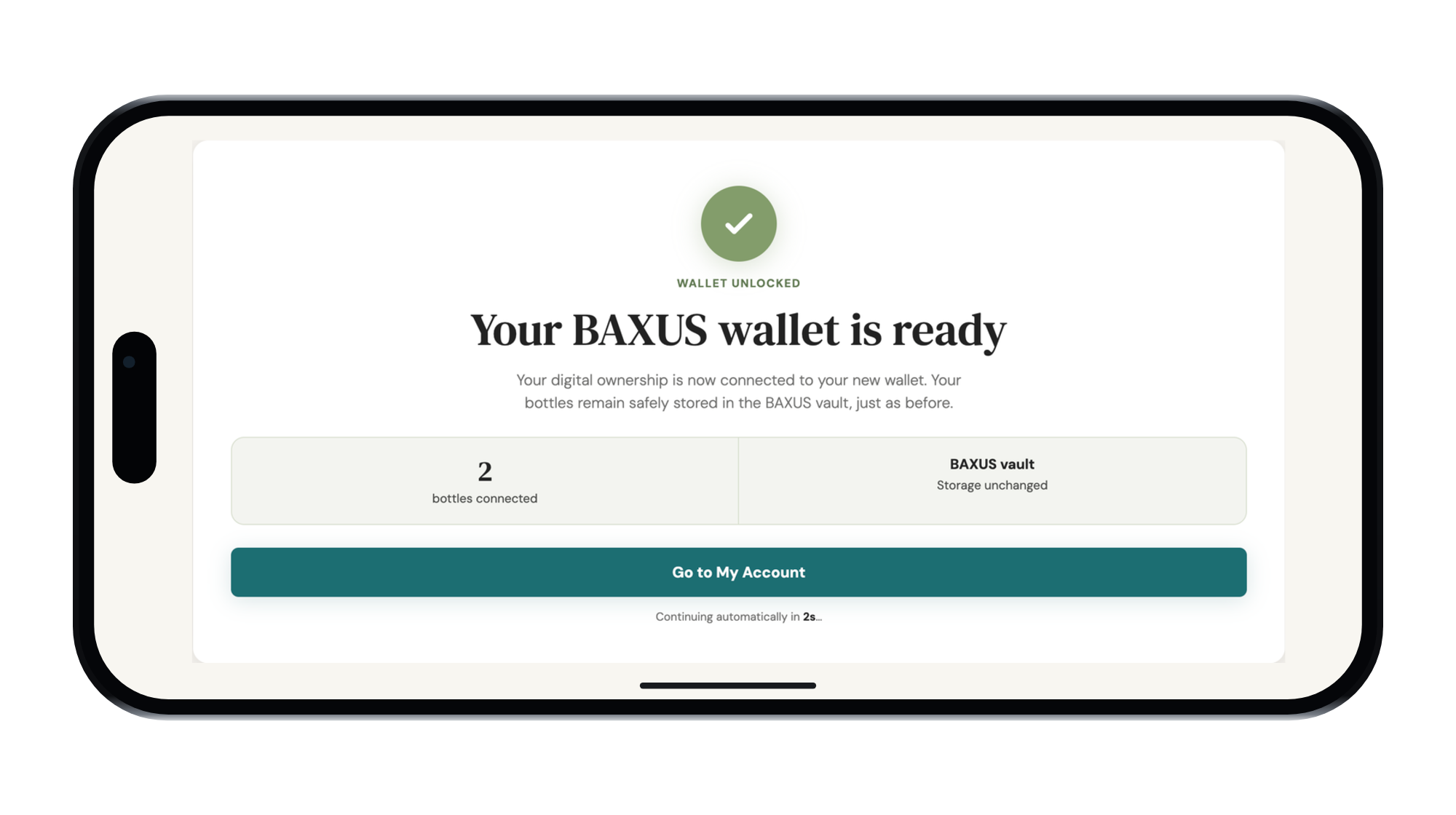
The last screen says Wallet ready.
If you started on the web you'll get Go to My Account and a countdown that takes you there on its own. If you started in the app you'll get Return to BAXUS app, and when you land back in the app your Vault reloads with your bottles in it.
If a screen surprises you
Four states, and what each one means
We're still preparing your bottles. Your bottles are nearly ready at our end. There's a Check again button, so give it a few minutes and press it. If it stays that way, write to us and we'll look at your account directly.
Wallet setup is open elsewhere. The setup page is open in another tab or on another device. Only one can be in charge at a time, which keeps two sessions from overlapping on the same account. Close the other one and the waiting page picks up.
Unable to load wallet setup. A connection hiccup. Reload and carry on. Your session is fine and so are your bottles.
You left halfway through. Everything you finished stays finished. Come back and you'll only be asked for what's still outstanding.
Signing in from here on
Face ID is the part you'll use every single day, and it's the reason the rest of this was worth building.
On your phone you can turn on Face ID, Touch ID or your fingerprint and be straight in from then on. You'll find it under Profile Settings, then Fast, secure sign-in. It's optional, and Not now is a perfectly good answer if you'd rather set it up later.
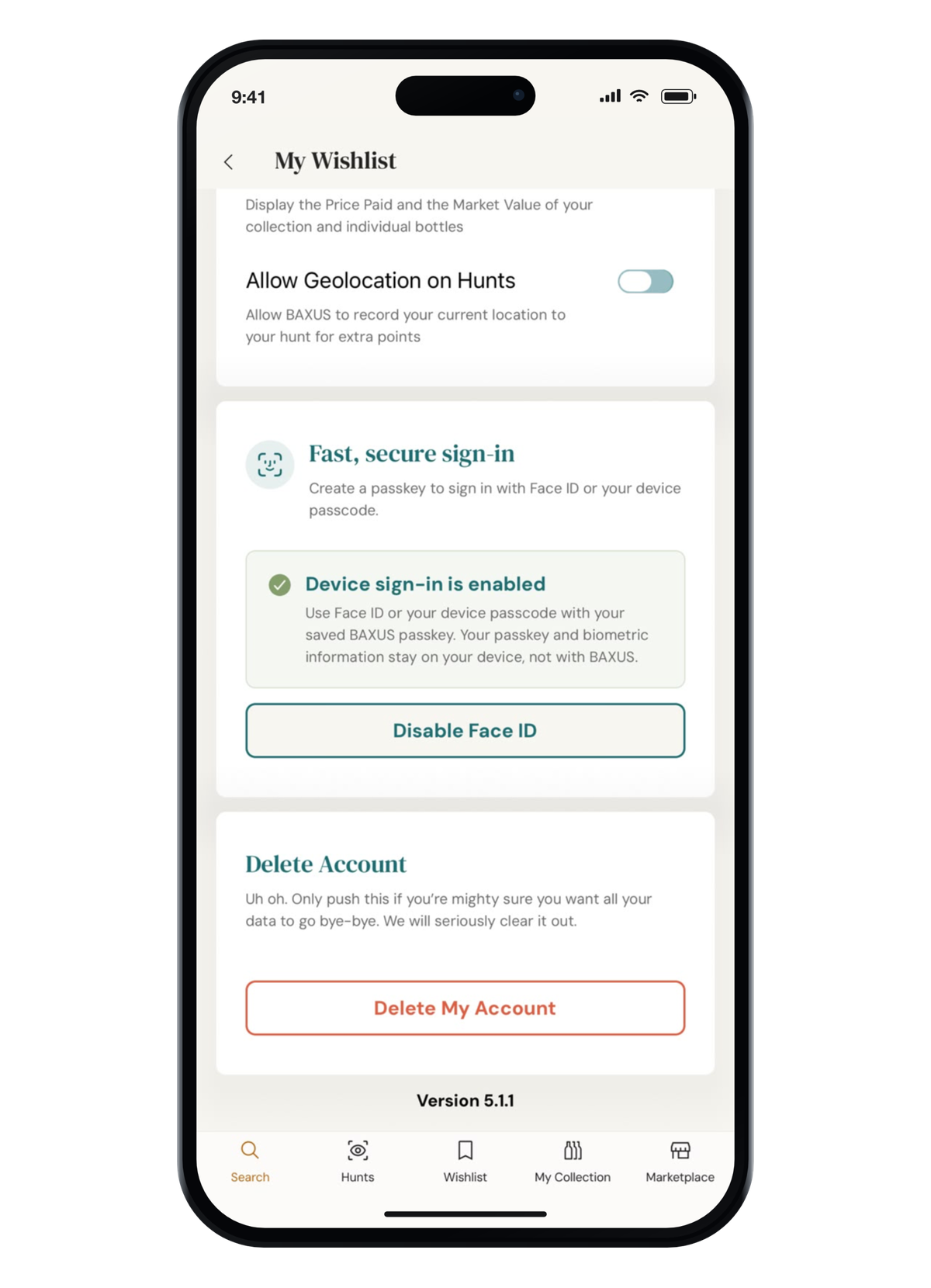
Your passkey and your biometric information stay on your device, not with BAXUS.
The phone does the check and tells us you passed. We never see your face or your fingerprint. On the web, email, Google and Apple all work the way they always have.
If you need a hand
Reply to any BAXUS email or write to info@baxus.co and tell us which screen you're on and what it says. That's usually all we need to get you moving again, and we'd rather hear from you early than have you wait.
Usually takes a few minutes
Or just go to baxus.co and log in
More from the BAXUS Vault
3 stories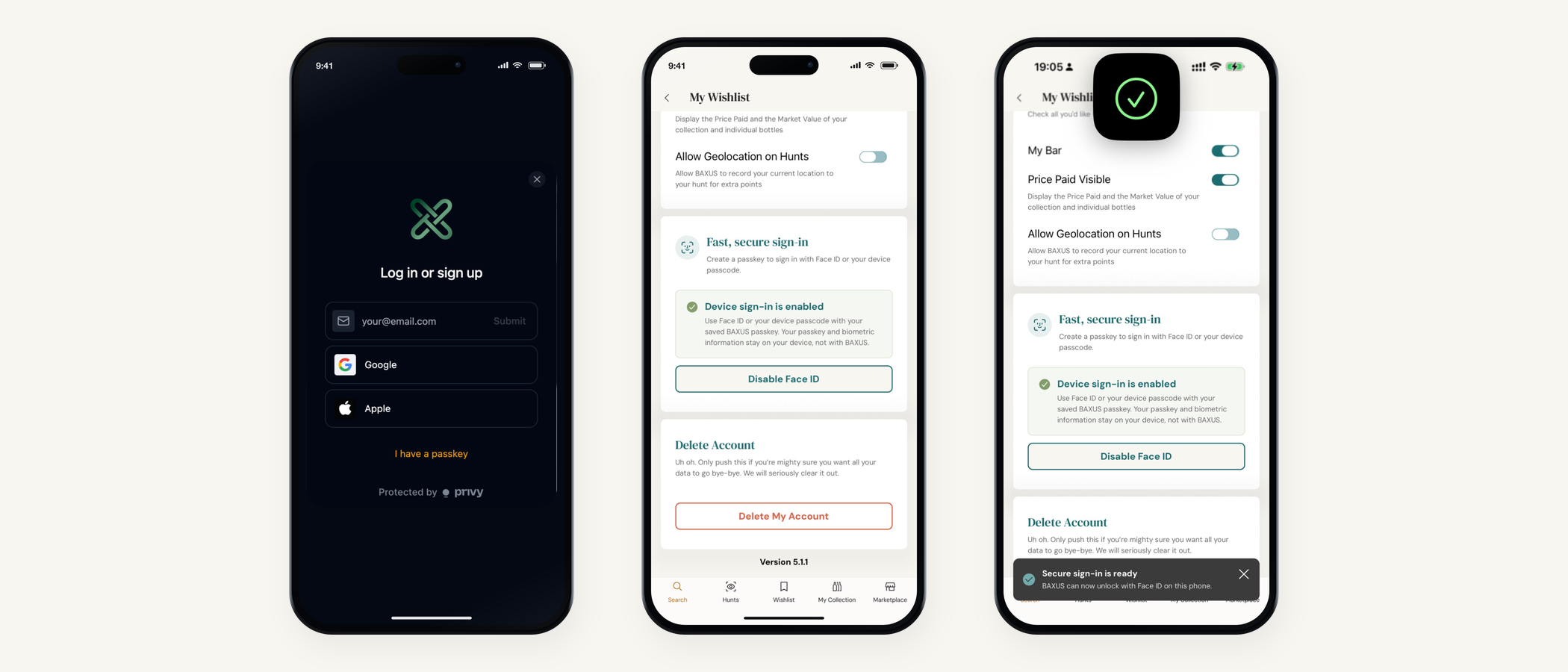
Sign in with your face
Face ID on your phone, Google or Apple on the web, and a passkey that never leaves your device. The most requested thing on our list, now live.
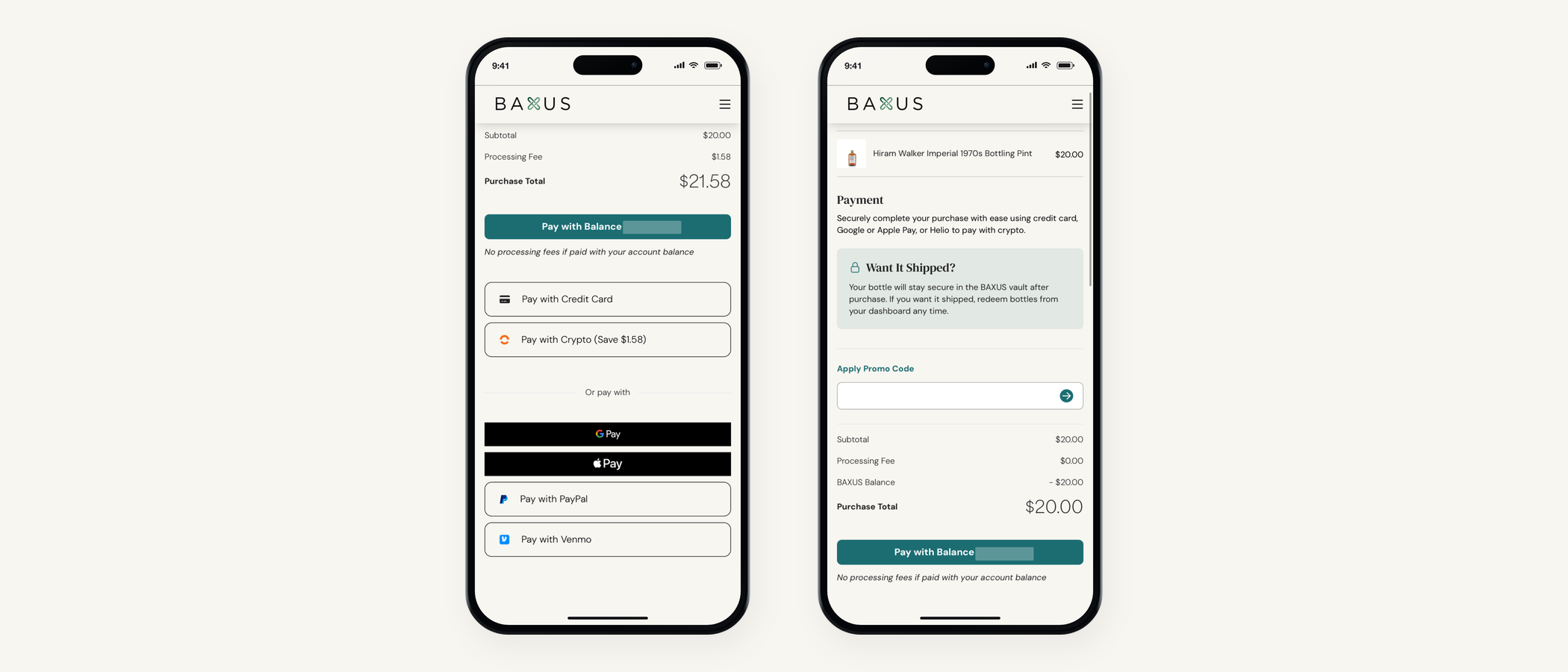
Seven ways to pay on BAXUS
PayPal and Venmo are live at checkout. Here's the full list, which one is cheapest, and how promo codes work alongside them.
Wallet setup questions, answered
What the screens mean, what's safe to ignore, and what to do if one of them surprises you. The page to send anyone mid-setup.