Sign in with your face
Face ID on your phone, Google or Apple on the web, and a passkey that never leaves your device. The most requested thing on our list, now live.
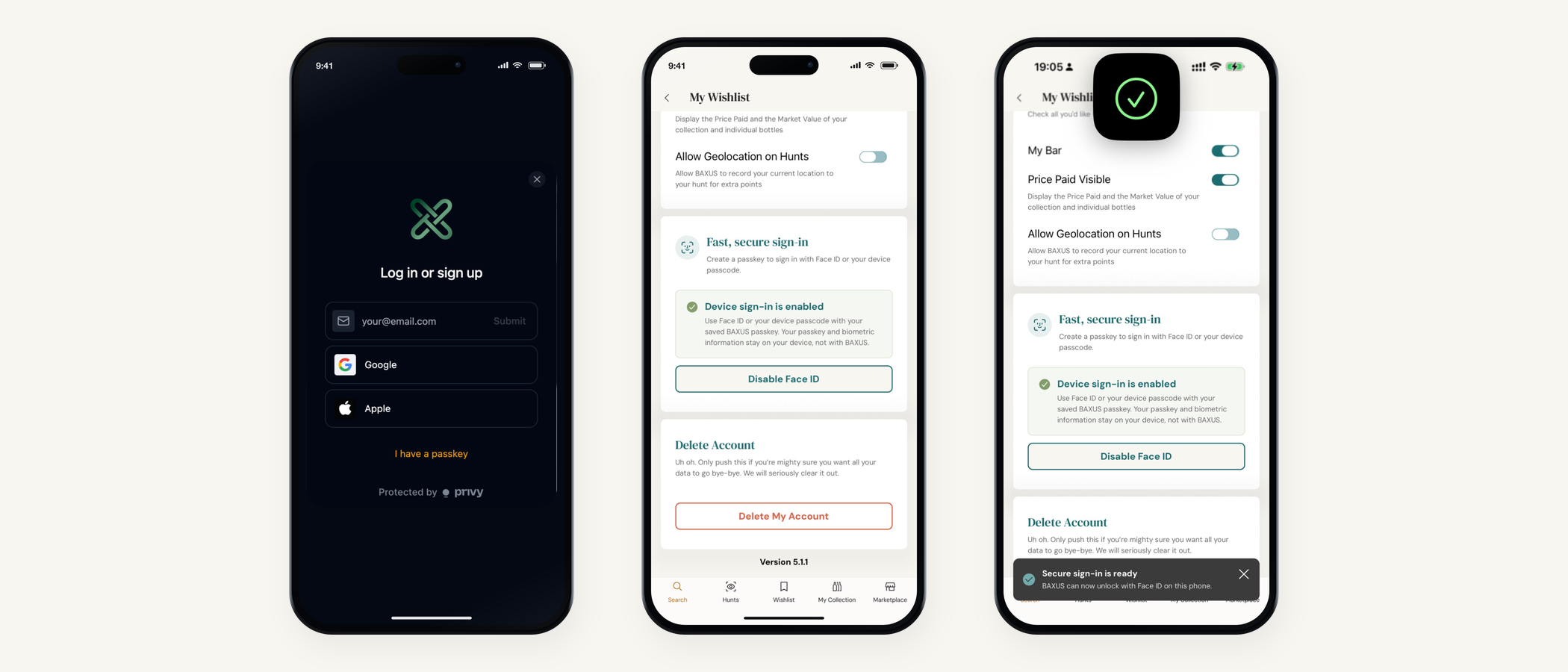
- Face ID on your phone, Google or Apple on the web, and a passkey that never leaves your device.
- The most requested thing on our list, now live.
- The thing people have asked us for more than anything else just went live.
- You can now sign into BAXUS with your face.
The thing people have asked us for more than anything else just went live. You can now sign into BAXUS with your face.
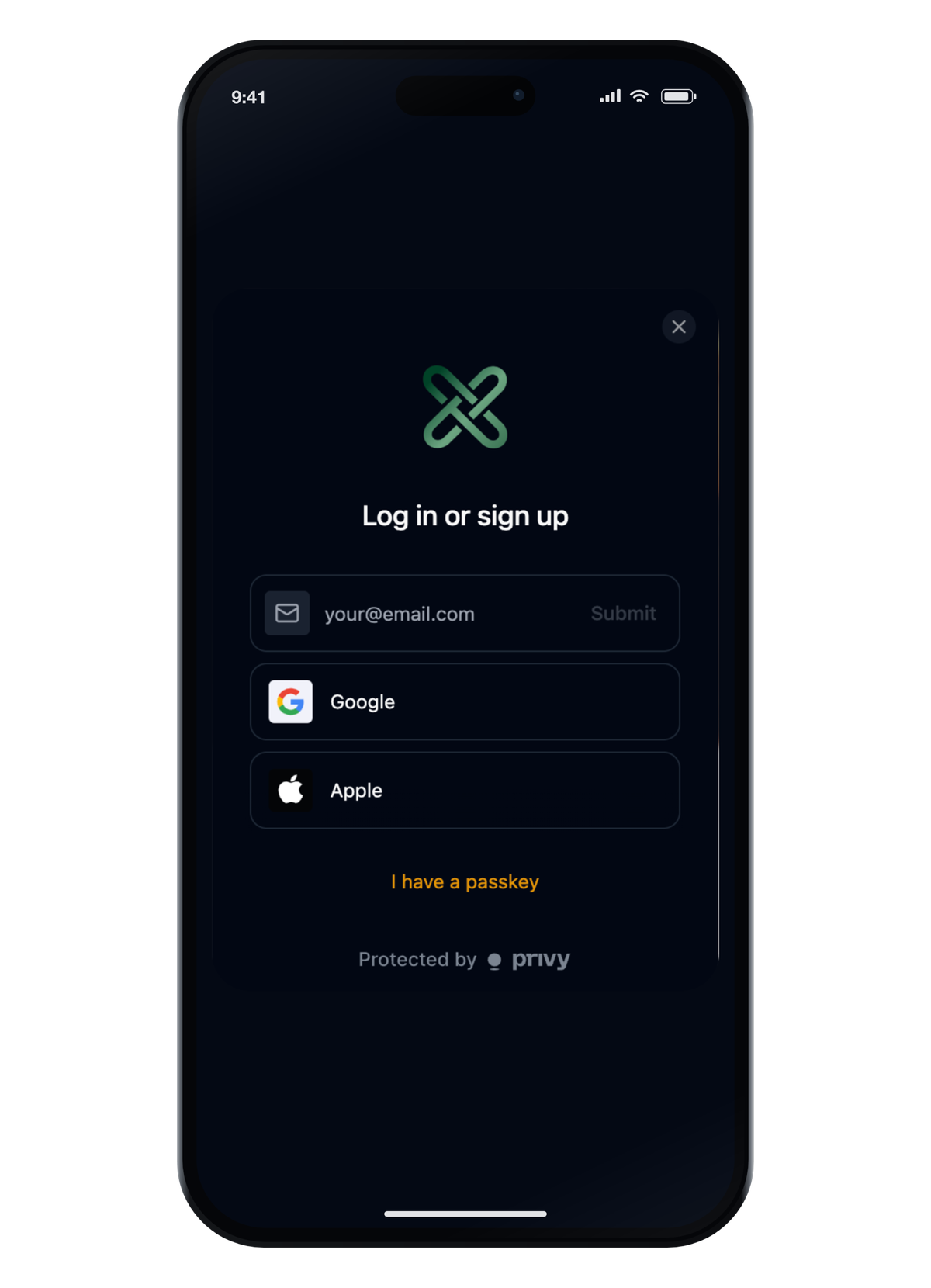
Face ID or your fingerprint on your phone. Google or Apple on the web. Set it up once and you're straight in from then on, on every device you use, with your passkey held on the device rather than by us.
On mobile: Face ID or fingerprint · On web: Google, Apple or email · Passwords: None to remember · Setup: About ten seconds
What signing in looks like now
On your phone it's Face ID or your fingerprint. Open the app, look at it, you're in.
On the web it's Google or Apple, or your email address if you'd rather. Email still sends you a one-time code to paste in, and the new system is considerably quicker about getting it to you.
Use the same email you've always used. That's how we find your account, your bottles and your history. A different address makes a different account, so it's the one detail to get right.
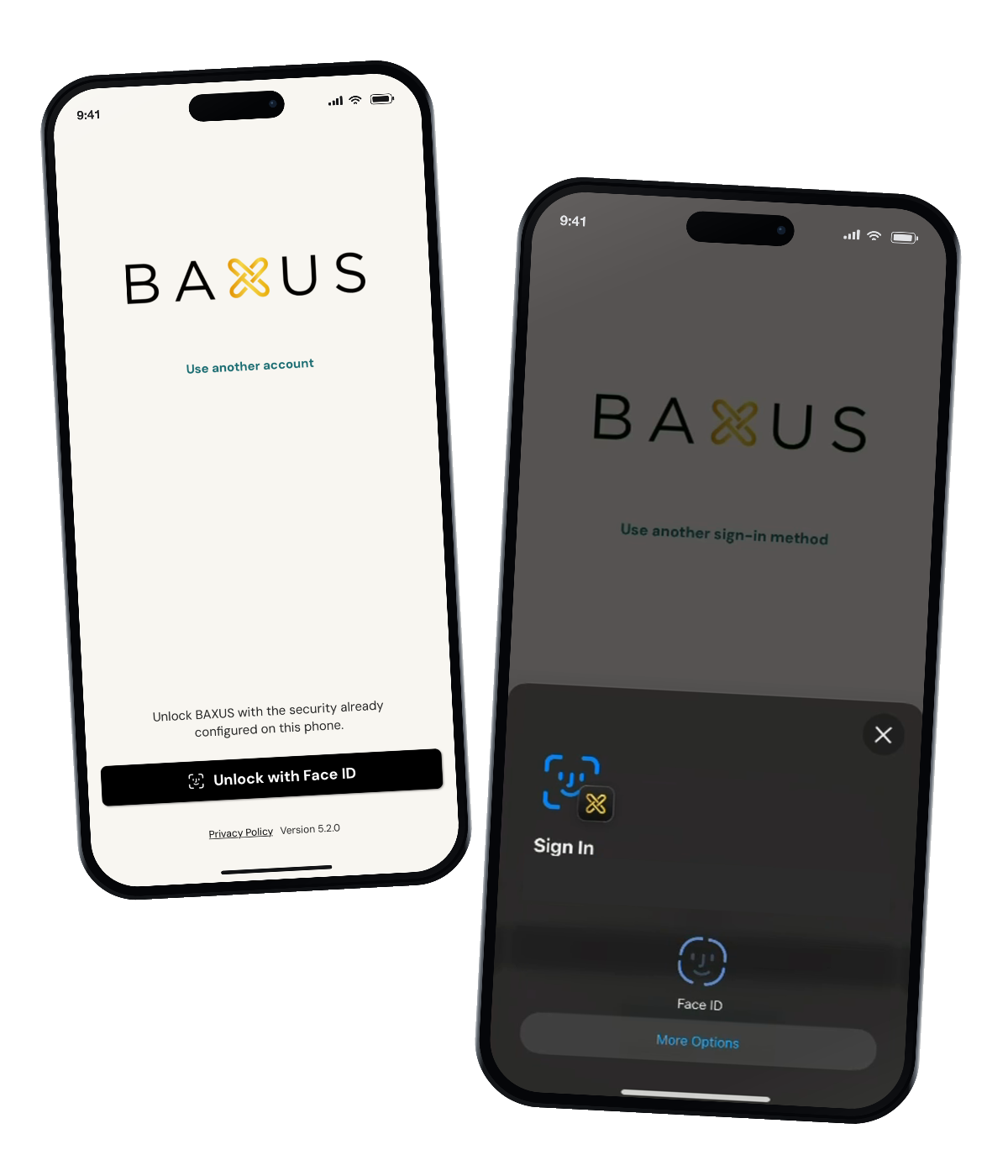
Turning it on takes about ten seconds
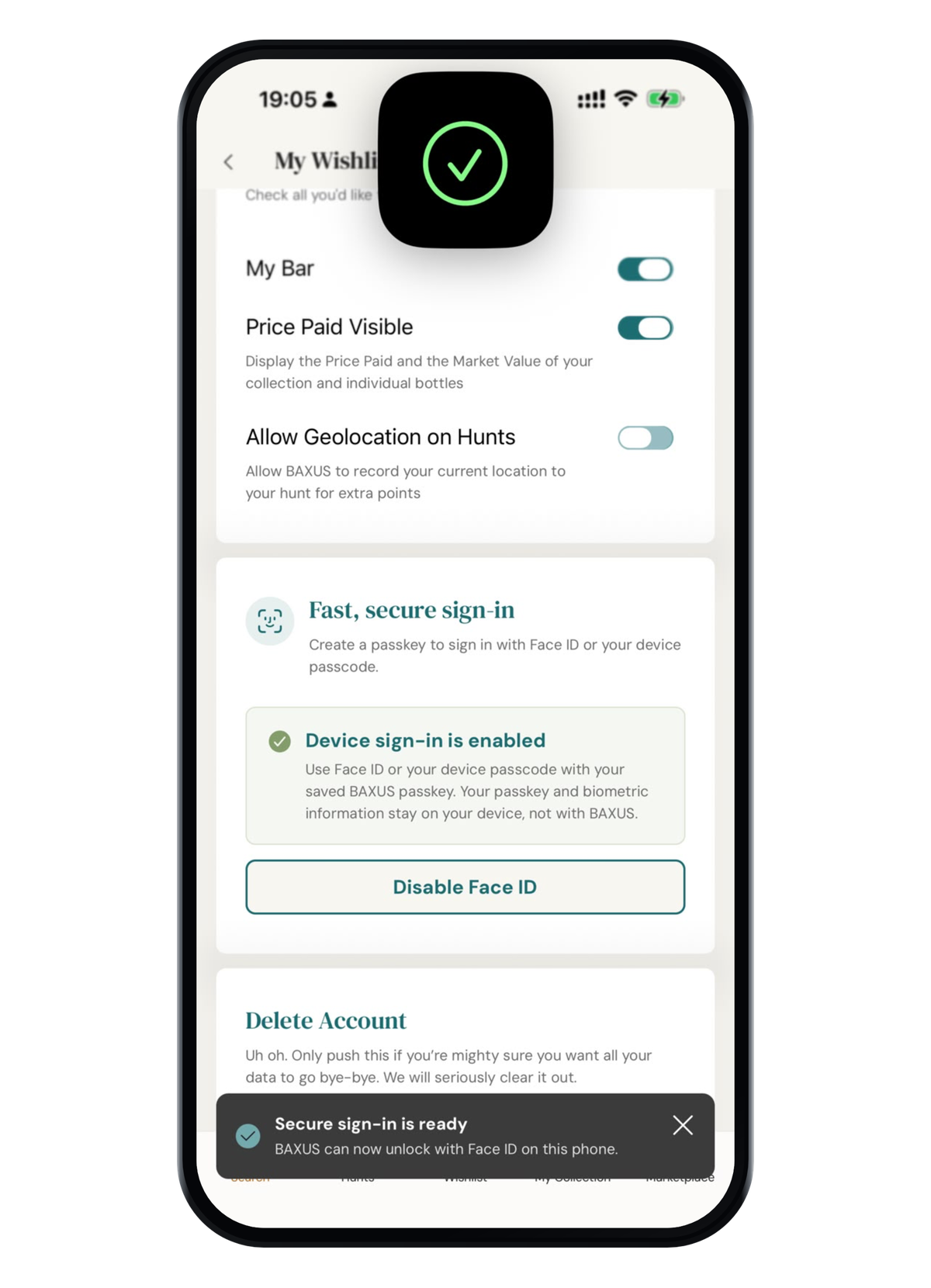
Go to Profile Settings and look for Fast, secure sign-in. Switch it on, confirm once with Face ID or your fingerprint, and the setup is finished.
You may also be offered it right after you log in. If it's not a good moment, press Not now and the offer comes back later. Your ordinary sign-in keeps working in the meantime.
Where your face actually goes
Nowhere. This is the part to be precise about, because biometrics are something people are right to ask about.
Your passkey and your biometric information stay on your device.
The phone confirms that it's you, then tells BAXUS the check passed. We never receive your face or your fingerprint, we can't see them, and there's nothing on our side that could be turned back into them. It's the same mechanism your banking app uses, for the same reason.
One thing that will look different
We've moved to a new login provider called Privy, and it's what makes the Face ID part possible. For you it changes almost nothing, with one exception to know in advance.
Your code will come from Privy
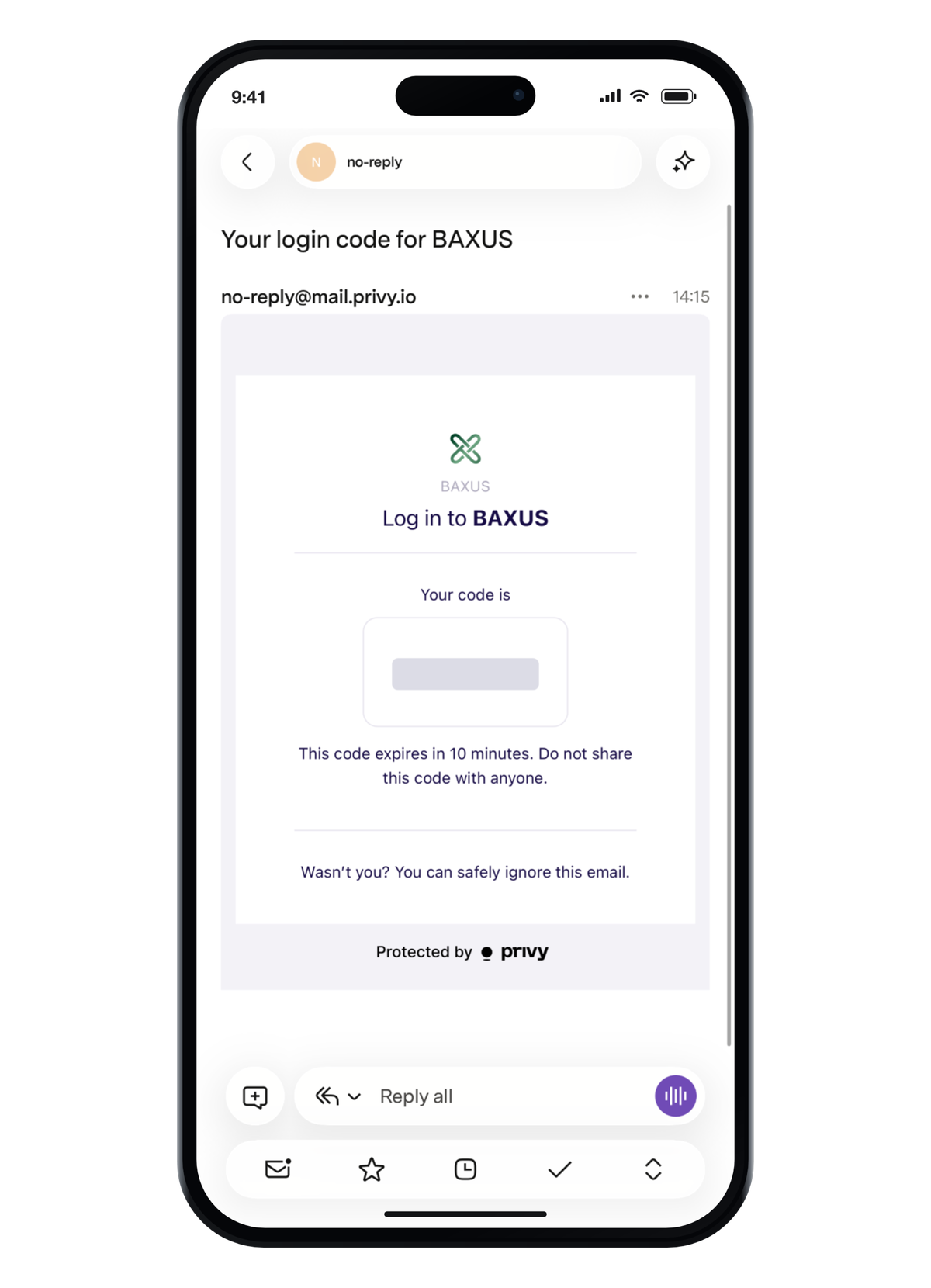
Your verification code now arrives from Privy rather than from BAXUS. So if you sign in with your email and a message turns up under a name you weren't expecting, that's the right one.
It happens once. After that you can switch on Face ID and stop needing codes altogether.
If a screen surprises you
The two that come up most
You were asked to sign in again after the app handed you to your browser. Sign in with the same email you always use and carry on from where you were. Everything you'd already done is saved.
It says setup is open somewhere else. The page is open in another tab or on another device. Close that one and the page in front of you picks up where it left off.
If it's neither of those, write to us and tell us what the screen says. That's usually all we need to get you moving again.
Why this one mattered
Sign-in doesn't show up on a marketplace listing, and nobody buys a bottle because the login is good.
But it's the door everything else goes through, and it's the thing you asked for more than anything else we've shipped. Getting it right is what makes the next year of product reachable, and it's the release we're proudest of this year.
Takes about ten seconds
Profile Settings › Fast, secure sign-in

More from the BAXUS Vault
3 stories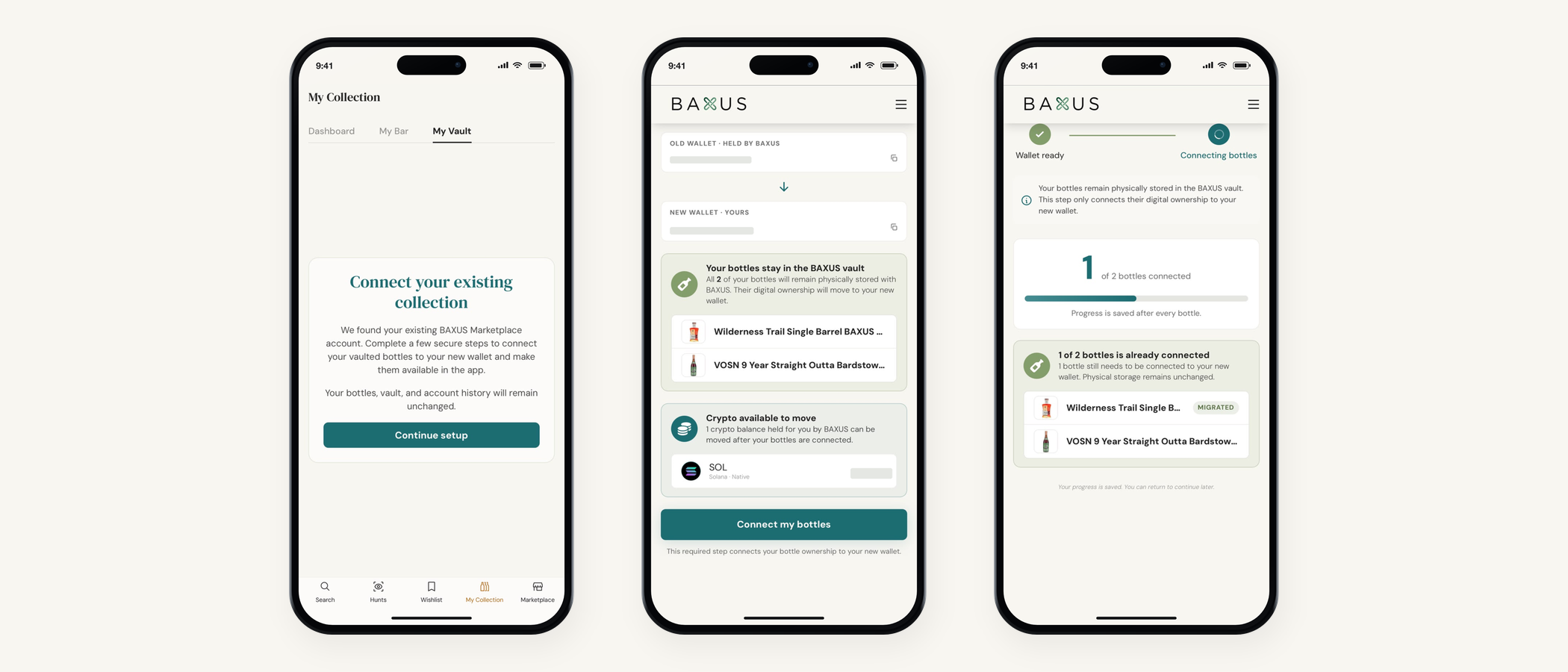
Complete your BAXUS wallet setup, screen by screen
Every screen, on web and in the app, in the order you'll meet them. What each button does, what's optional, and what's waiting on the other side.
Seven ways to pay on BAXUS
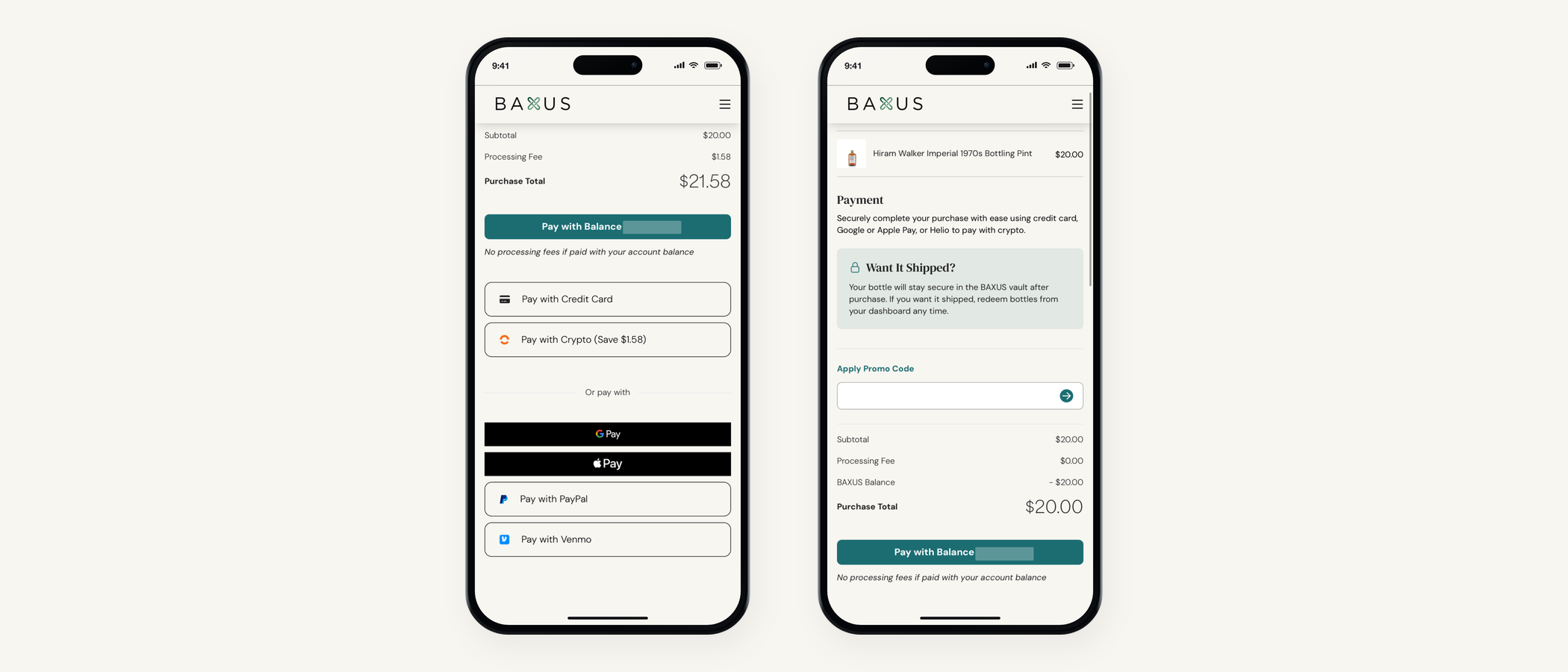
PayPal and Venmo are live at checkout. Here's the full list, which one is cheapest, and how promo codes work alongside them.
Wallet setup questions, answered
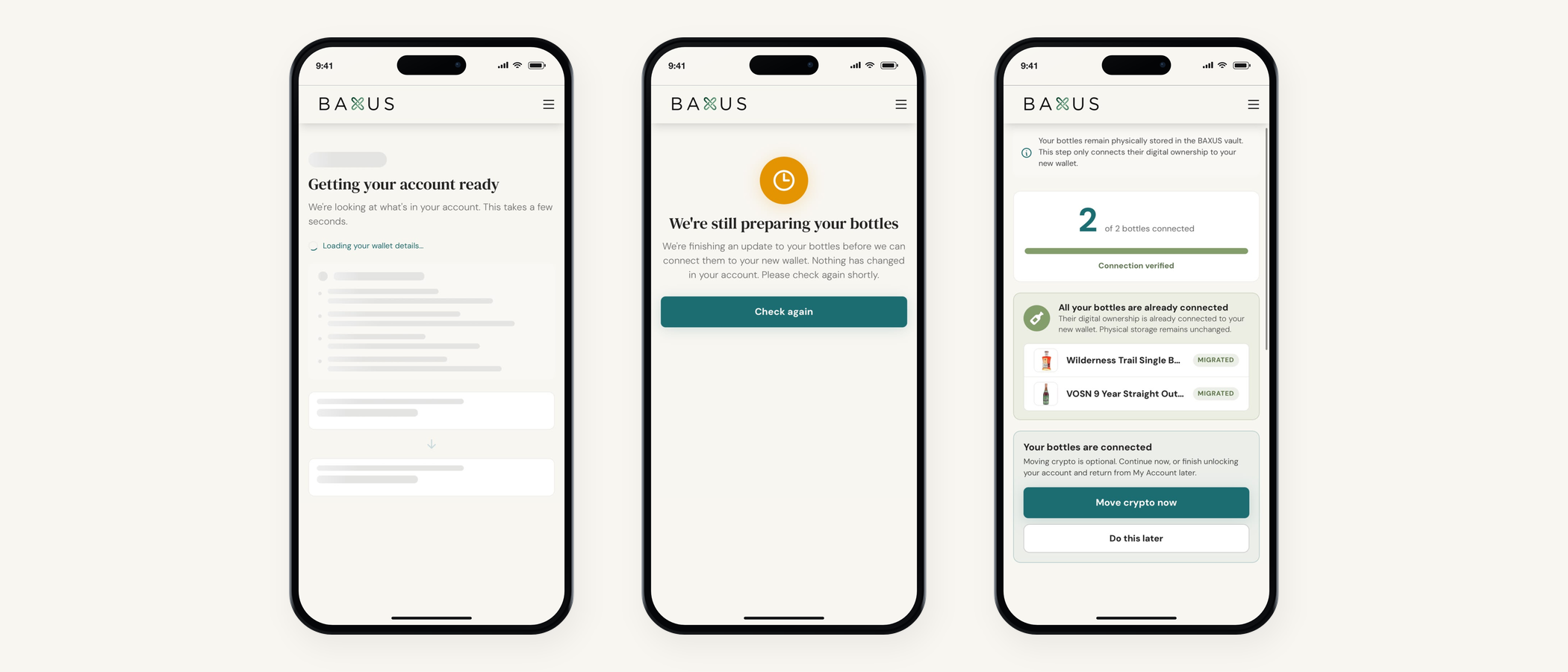
What the screens mean, what's safe to ignore, and what to do if one of them surprises you. The page to send anyone mid-setup.